7 Best Free AI Video Editing Tools in 2026 (No Expensive Software Needed)
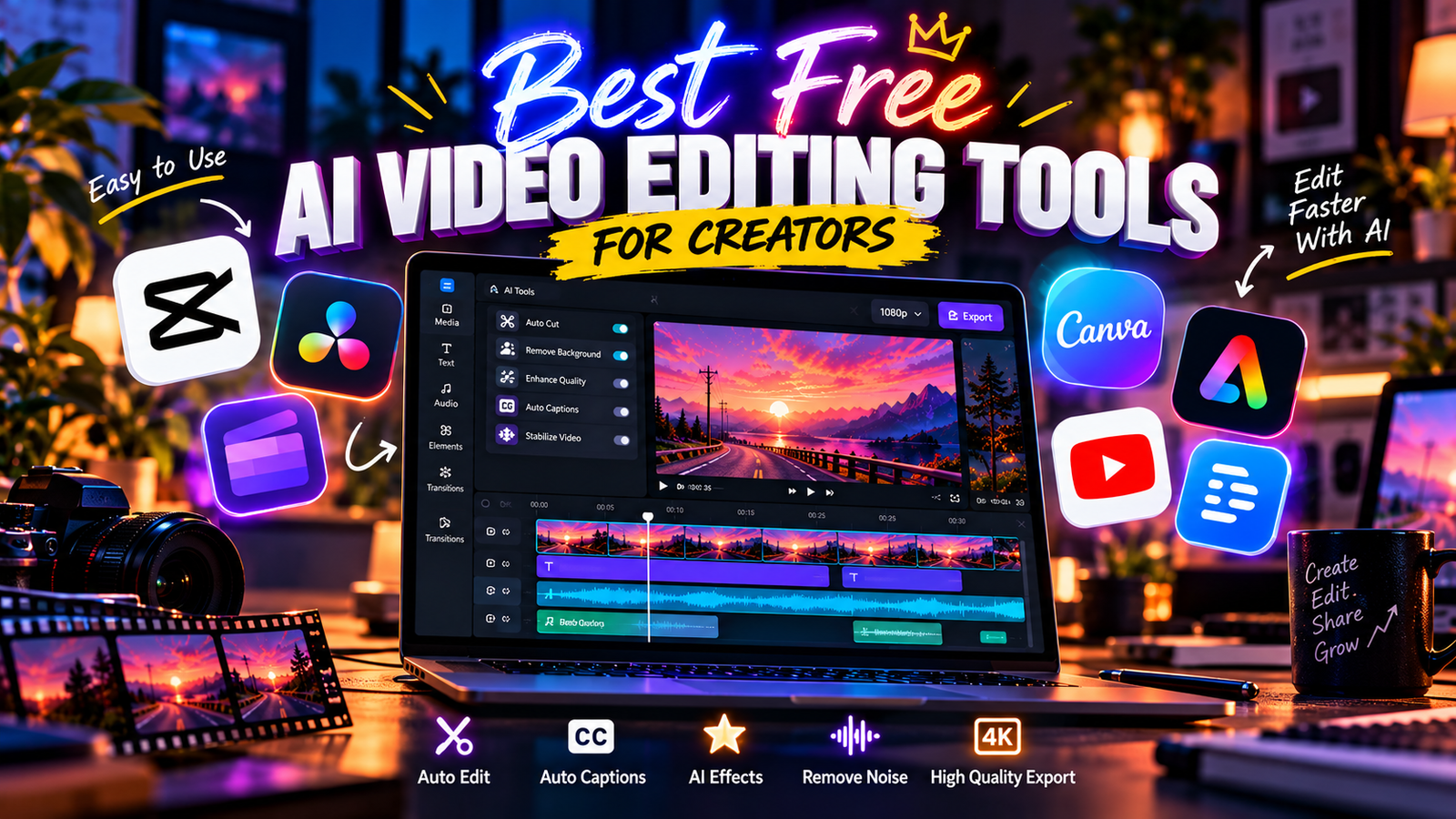
Creating great videos no longer requires expensive editing software or years of experience. Today, free AI video editing tools can help you generate captions, remove awkward pauses, clean up audio, arrange clips, and prepare videos for social media with much less manual work.
Whether you are a YouTuber, Instagram Reels creator, student, gamer, or beginner experimenting with content creation, there are tools that can make editing easier without immediately committing to a paid subscription.
However, there is one important thing to understand: a free AI video editor does not necessarily make every AI feature free. Some applications offer a genuinely useful free editing workflow but reserve selected AI features for paid plans. Others restrict premium templates, stock media, or export options.
In this guide, we will compare seven free AI video editing tools, explain what each one does best, and help you choose the right option for your workflow.
Quick Comparison: Best Free AI Video Editing Tools
| Tool | Best For | Platform | Main Advantage |
| CapCut | Reels, Shorts, and gaming edits | Desktop, mobile, web where available | Fast social-media editing |
| DaVinci Resolve | Advanced and professional editing | Windows, Mac, Linux | Powerful free editing suite |
| Microsoft Clipchamp | Beginners and quick projects | Browser, Windows | Easy editing with AI-assisted tools |
| Canva Video Editor | Social posts and branded videos | Browser, mobile | Templates and simple design tools |
| Adobe Express | Quick promotional and social videos | Browser, mobile | Easy editing and Adobe integration |
| YouTube Create | YouTube videos and Shorts | Supported mobile devices | Creator-focused editing workflow |
| Descript | Podcasts, tutorials, and talking-head videos | Desktop and web, depending on availability | Text-based editing |
Note: Features, free-plan limits, device support, and regional availability can change. Check the official product pages before building your regular workflow around a particular feature.
1. CapCut: Best for Reels, Shorts, and Gaming Edits
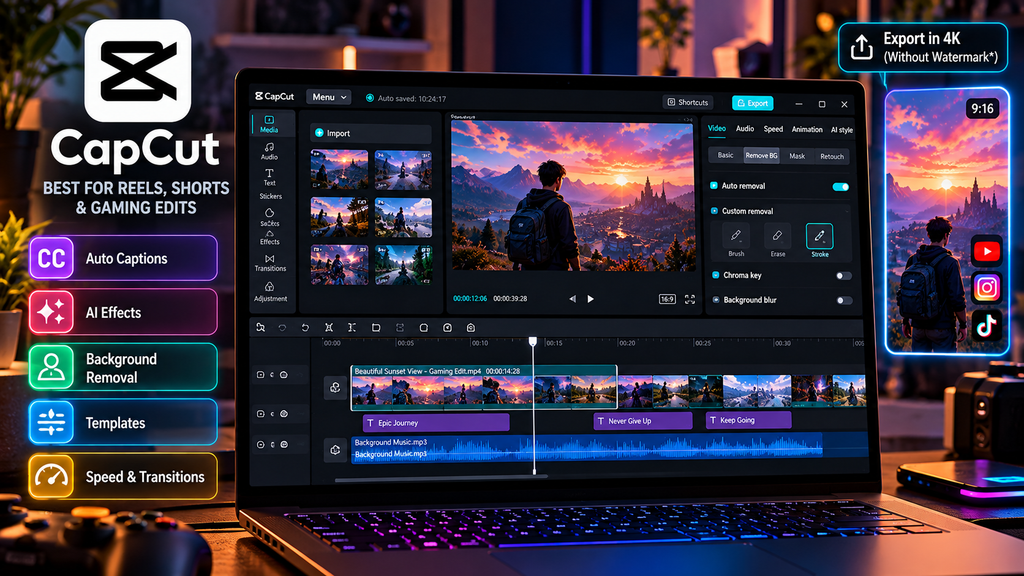
Best for: Short-form creators, gaming edits, subtitles, transitions, and fast-paced social videos.
CapCut is a popular choice for creators who want to turn raw footage into engaging videos without spending hours on complicated editing processes. Its editing workflow is designed around accessible tools, effects, templates, and features for social content.
Depending on the version and region, its AI-assisted features can include automatic captions, background removal, audio enhancement, and tools that help speed up video creation.
Key features
- Automatic captions and subtitle editing.
- Video effects, transitions, and speed controls.
- Templates for short-form content.
- AI-assisted video creation and editing features.
- Tools for vertical videos, including Reels and Shorts.
Pros
- Beginner-friendly interface.
- Well suited to fast-paced social-media edits.
- Useful effects and transitions for gaming content.
- Available across supported desktop, mobile, and web environments.
Cons
- Some AI features, effects, templates, and export options may require payment.
- Availability can differ by region and application version.
- A project using premium assets may not export as expected on a free account.
Is CapCut worth using for free?
Yes, if your main goal is to create short videos and you confirm that the specific effects and export settings you need are available on your free account. Before starting a large project, make a short test edit and export it to check for watermarks, resolution restrictions, and premium-feature warnings.
Official website: Click Here
2. DaVinci Resolve: Best for Professional-Level Editing
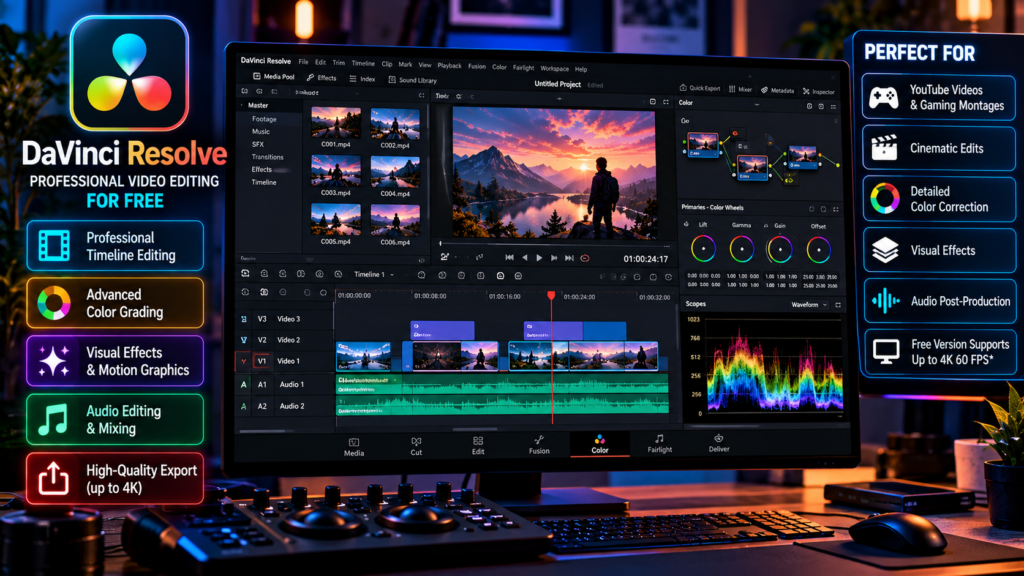
Best for: YouTube videos, cinematic edits, gaming montages, colour grading, and advanced projects.
If you want more control over your videos, DaVinci Resolve is one of the strongest free desktop editors to consider. It combines video editing, colour correction, visual effects, motion graphics, and audio post-production in one application.
Unlike lightweight online editors, Resolve is built for detailed projects where you may need to adjust individual clips, create complex timelines, refine colours, and mix audio.
Blackmagic Design states that the free version supports resolutions up to Ultra HD 3840 × 2160 at up to 60 frames per second for supported formats. However, some advanced AI features and effects are reserved for DaVinci Resolve Studio.
Key features
- Professional multitrack timeline editing.
- Detailed colour correction and grading.
- Visual effects and motion graphics tools.
- Audio editing and mixing.
- High-resolution exports for supported formats.
Pros
- Extremely capable free editing environment.
- Excellent control over colour and visual style.
- Suitable for both short-form and long-form videos.
- No need to rely on a browser-based editing workflow.
Cons
- Takes longer to learn than beginner-focused apps.
- Requires a compatible computer and sufficient system resources.
- Some advanced AI tools are exclusive to the paid Studio version.
Is DaVinci Resolve a good free AI video editor?
It is an excellent free video editor with selected AI-assisted capabilities, but it is not the best choice if you expect every advanced AI feature to be available for free. Its biggest strength is giving you extensive manual editing control without requiring a subscription for the basic version.
Official website: Click Here
3. Microsoft Clipchamp: Best for Beginners
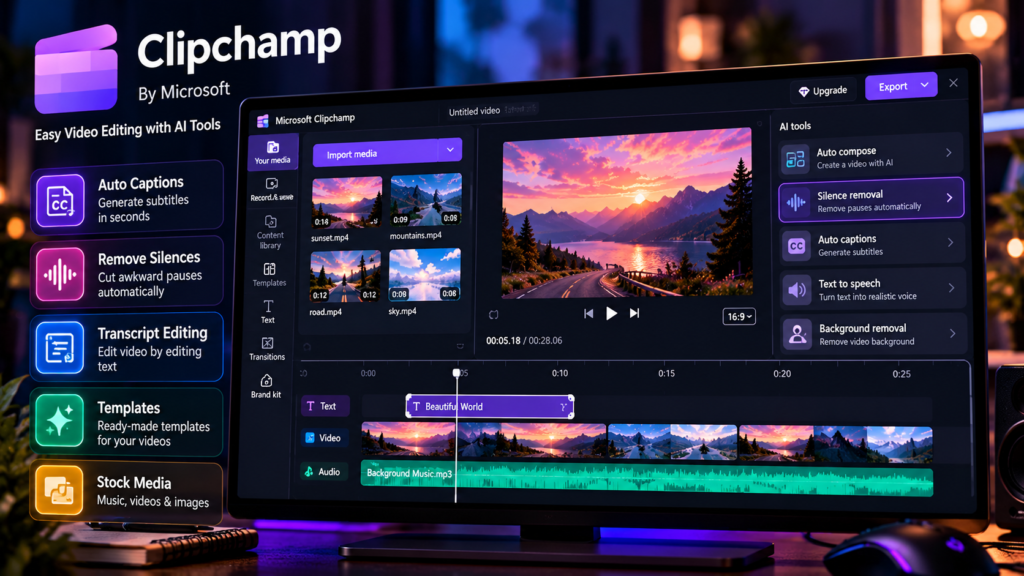
Best for: Simple YouTube videos, tutorials, presentations, and everyday editing.
Microsoft Clipchamp is a browser-based video editor that is also available as a Windows application. It is a practical choice if you want to edit videos without learning a complicated professional interface.
Its AI-assisted tools can help with tasks such as removing long pauses, working with transcripts, and automatically composing videos from selected media. Microsoft also offers templates and stock content to help beginners get started.
Key features
- Trimming, splitting, and arranging clips.
- AI-assisted silence removal.
- Transcript-based editing tools.
- Automatic video composition.
- Templates, stock media, and basic visual adjustments.
Pros
- Straightforward interface.
- Works in supported browsers without requiring a full professional editing setup.
- Useful for tutorials and straightforward social videos.
- Official documentation identifies its AI editing tools as available to free users.
Cons
- It does not provide the same depth of control as a professional editor.
- Premium stock content and certain assets may have restrictions.
- Browser performance depends on your computer, browser, and project size.
Should you choose Clipchamp?
Choose Clipchamp if you want a relatively simple editing workflow and helpful automation rather than dozens of advanced controls. It is especially useful for creators who need to produce tutorials, explainers, and basic promotional videos.
Official website: Click Here
4. Canva Video Editor: Best for Social Media and Branded Content
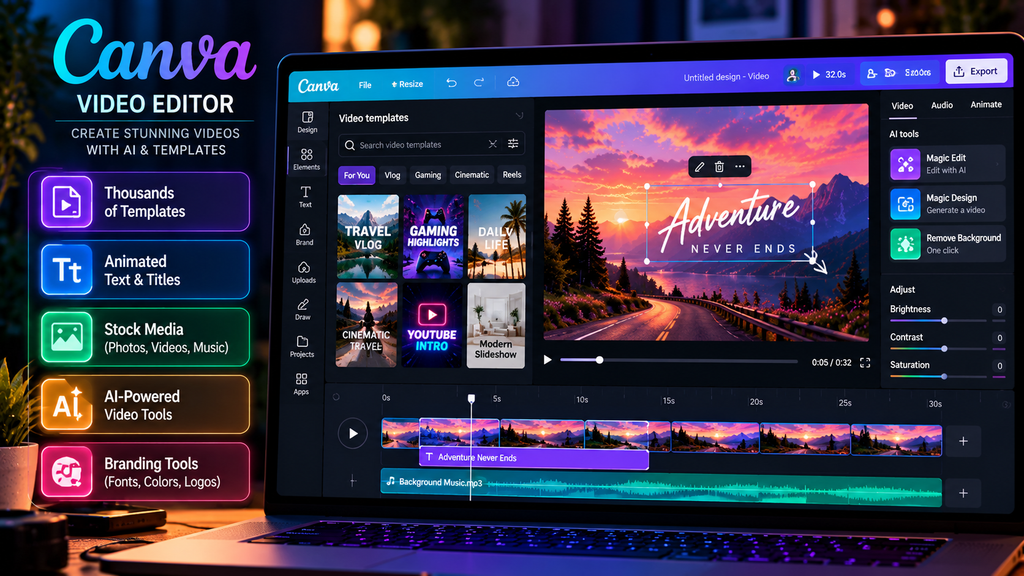
Best for: Instagram Reels, promotional clips, educational videos, and branded social posts.
Canva is known for graphic design, but its video editor can also help you create and assemble videos using a timeline, templates, text animations, and visual assets.
Its AI-assisted features include tools that can identify highlights, arrange selected clips into social-ready content, and enhance certain aspects of video or audio. The exact availability of these features depends on the tool, plan, and account.
Key features
- Drag-and-drop video editing.
- Templates, titles, and animated text.
- Multi-layer timeline editing.
- AI-assisted highlights and clip arrangement.
- Video designs that match your existing brand identity.
Pros
- Easy to learn.
- Useful for creators who also design thumbnails, banners, and social posts.
- Convenient for maintaining consistent colours, fonts, and branding.
- Free exports can be watermark-free when you use eligible free assets.
Cons
- Some AI tools and premium assets require a paid plan.
- Using paid elements without the appropriate licence may restrict your export.
- It is less suited to complex, effects-heavy editing than a dedicated professional editor.
Is Canva good for free video editing?
Canva is a good option if your videos rely on clean typography, attractive layouts, simple transitions, and consistent branding. It is less suitable when you need advanced timeline control or detailed cinematic colour grading.
Official website: Click Here
5. Adobe Express: Best for Quick Social Videos
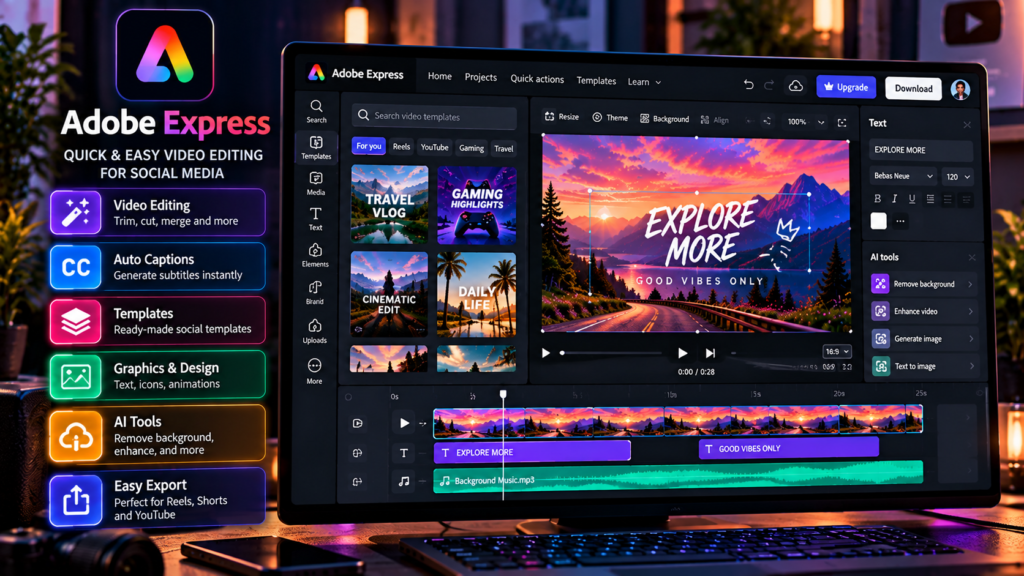
Best for: Short promotional videos, branded content, simple edits, and creators already using Adobe products.
Adobe Express offers a streamlined way to create and edit social content without learning a complex editing application. It brings video editing together with graphic design tools, making it useful for creators who regularly produce posts, advertisements, and short promotional videos.
Adobe’s published feature comparison identifies free video editing and automatic caption generation among the features available in Adobe Express Free. Feature availability can vary between platforms and may change over time.
Key features
- Simple video editing and trimming.
- Automatic caption generation on supported versions.
- Text, graphics, and branded design elements.
- Templates for social-media content.
- Integration with other Adobe creative tools.
Pros
- Easy to use for simple projects.
- Convenient for combining graphics and video.
- Helpful for maintaining a consistent visual identity.
- Useful for creators who make both videos and promotional designs.
Cons
- Not a replacement for a full professional video editor.
- Some assets and advanced features are paid.
- Certain tools may behave differently across desktop and mobile.
Who should use Adobe Express?
Choose Adobe Express if you want to produce clean, branded content quickly. For highly stylised gaming montages or complex cinematic edits, a dedicated timeline editor will usually provide more flexibility.
Official website: Click Here
6. YouTube Create: Best for YouTube Videos and Shorts
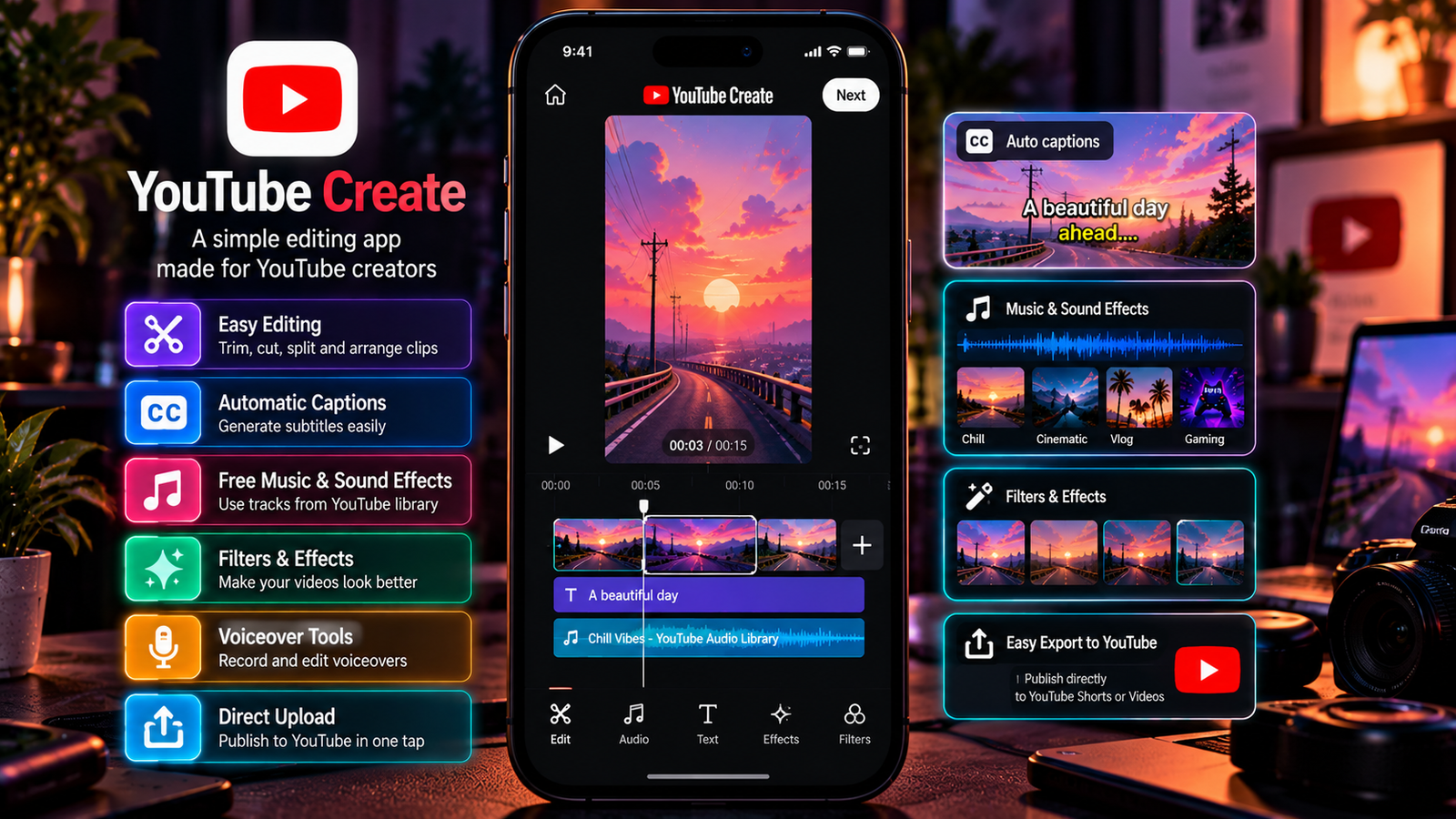
Best for: Mobile-first creators who publish directly to YouTube.
YouTube Create is a mobile video-editing app designed around the needs of YouTube creators. Depending on your device and the features available to your account, it offers tools such as trimming, captions, audio cleanup, music, effects, and voiceovers.
Some AI-assisted capabilities may have specific availability or eligibility requirements, so do not assume that every feature will appear on every device.
Key features
- Editing tools for regular videos and Shorts.
- Automatic captions on supported workflows.
- Music, sound effects, and voiceover tools.
- Audio-cleanup features.
- A workflow designed for publishing to YouTube.
Pros
- Useful for mobile-first creators.
- Designed specifically around YouTube content.
- Includes practical tools for everyday editing.
- Can reduce the need to move between several apps for simple projects.
Cons
- Mobile-focused workflow.
- Feature availability may depend on device, region, and account.
- Less suitable for advanced desktop projects with complex timelines.
Is YouTube Create worth trying?
If you mainly publish YouTube Shorts or edit videos on your phone, it is worth testing before paying for another application. Check its current availability and supported devices through YouTube’s official resources.
Official information: Click Here
7. Descript: Best for Podcasts and Talking-Head Videos
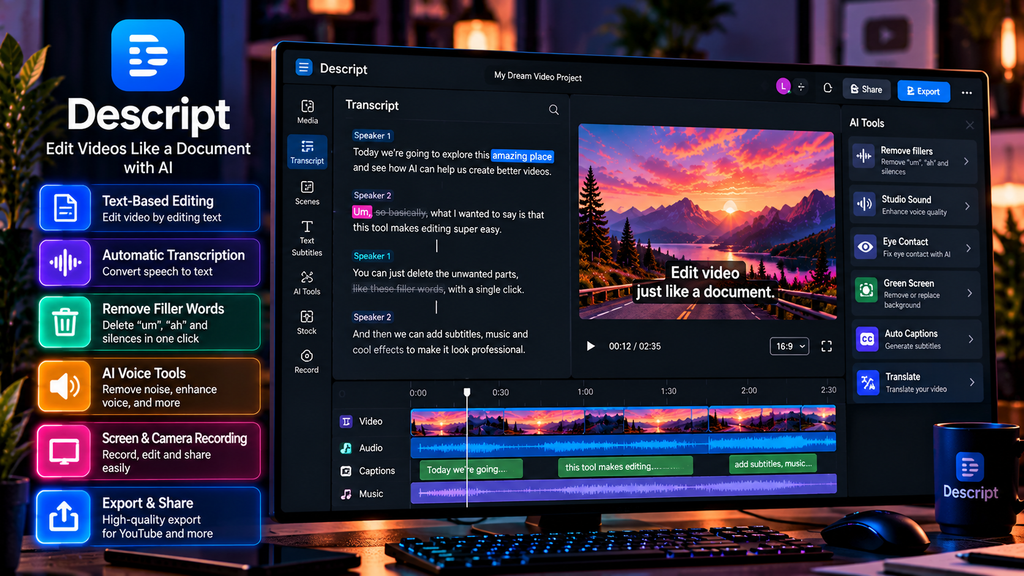
Best for: Interviews, educational content, podcasts, tutorials, and videos with lots of speech.
Descript approaches video editing differently from a traditional timeline editor. It can transcribe spoken content so you can edit parts of a recording by working with the text. For speech-heavy videos, this can make it easier to find sections, remove unwanted words, and organise a recording.
Its AI-assisted workflow is particularly relevant when the spoken content matters more than elaborate transitions or visual effects.
Key features
- Speech transcription.
- Text-based editing workflows.
- Tools for editing podcasts and interviews.
- AI-assisted audio and speech workflows.
- Collaboration features on supported plans.
Pros
- Useful for speech-heavy content.
- Can simplify editing long recordings.
- Helps creators locate and remove unwanted sections.
- Well suited to interviews and tutorials.
Cons
- Free usage is subject to plan limits.
- Some AI tools and export options may require a paid plan.
- Less appropriate for effects-heavy gaming edits or elaborate visual montages.
Is Descript completely free?
Descript offers a free entry point, but you should check the current limits for transcription, media usage, AI features, and exports before relying on it for a regular production workflow.
Official website: Click Here
Which Free AI Video Editor Should You Choose?
There is no single best tool for every creator. The right choice depends on the type of content you make and how much control you need.
| Your Goal | Recommended Tool |
| Reels, Shorts, and quick gaming edits | CapCut |
| Professional editing and colour grading | DaVinci Resolve |
| Simple editing with helpful automation | Microsoft Clipchamp |
| Videos with attractive text and templates | Canva |
| Branded social-media videos | Adobe Express |
| Mobile-first YouTube content | YouTube Create |
| Podcasts, interviews, and tutorials | Descript |
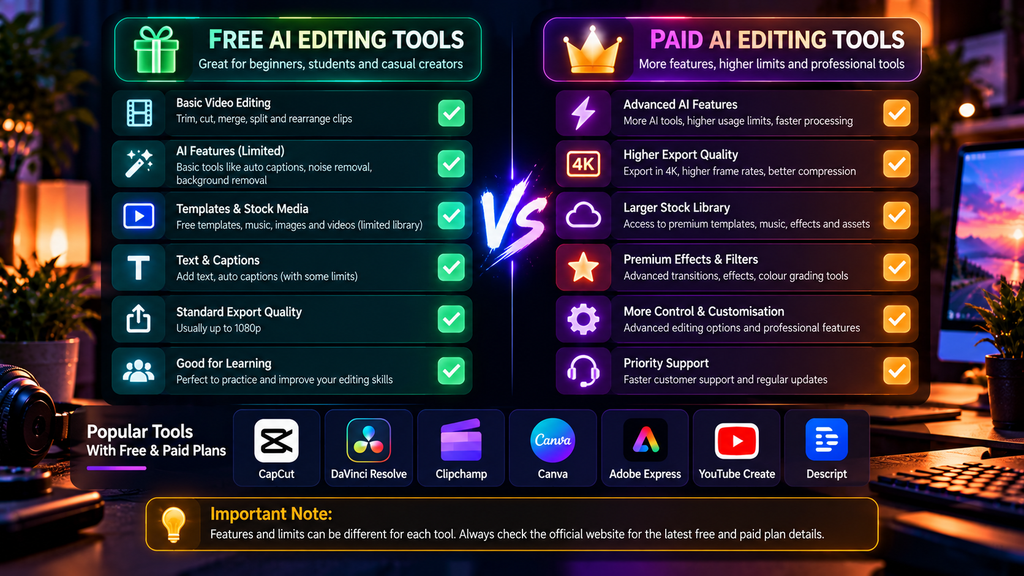
Our recommendation: Start with one editor instead of switching between several applications. If you are new to editing, test Clipchamp or Canva. If you mainly create short-form edits, test CapCut’s available free tools. If you want to develop advanced editing skills, learn DaVinci Resolve.
How to Choose a Free AI Video Editing Tool
Before downloading software or creating an account, check these six things.
1. Check What’s Actually Free
AI captions, background removal, and text-to-video may require a paid subscription or credits. Always check the current plan details.
2. Check for Watermarks
Create and export a short test video. Premium templates, stock footage, or effects may add restrictions or prevent free exports.
3. Check the Export Resolution
For most YouTube videos and social posts, 1080p is a good starting point. Higher resolutions need more storage and processing power.
4. Choose the Right Tool for Your Device
Browser editors are convenient, while desktop apps offer more control. Large projects and complex effects need more powerful hardware.
5. Check AI Usage Limits
Some tools limit captions, transcription, voice generation, background removal, or video generation through monthly limits or credits.
6. Check Commercial-Use Rights
If you create paid videos, check the licences for music, stock footage, templates, and AI-generated assets. Not every free asset is approved for commercial use.
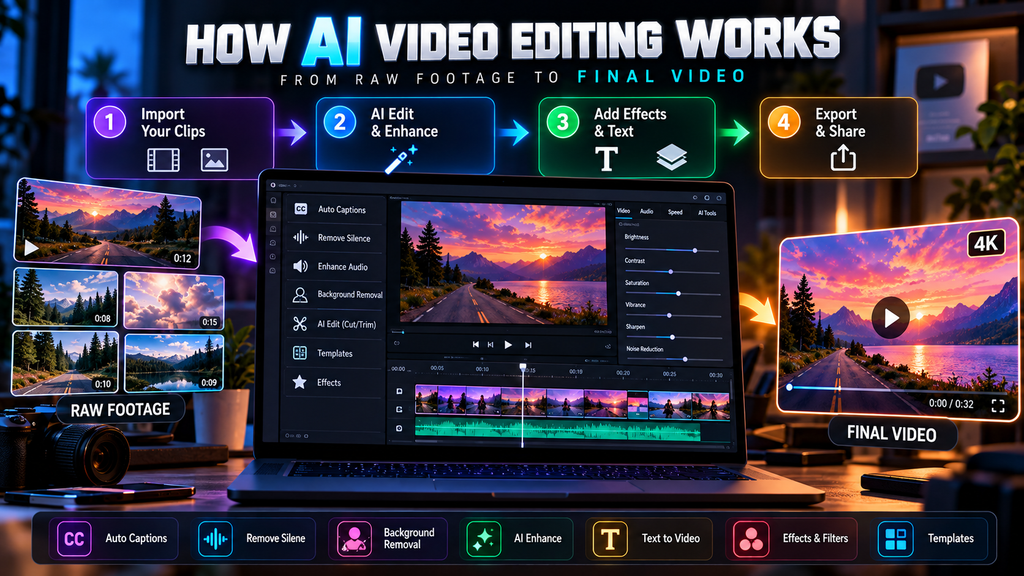
How to Edit a Video for Free Using AI
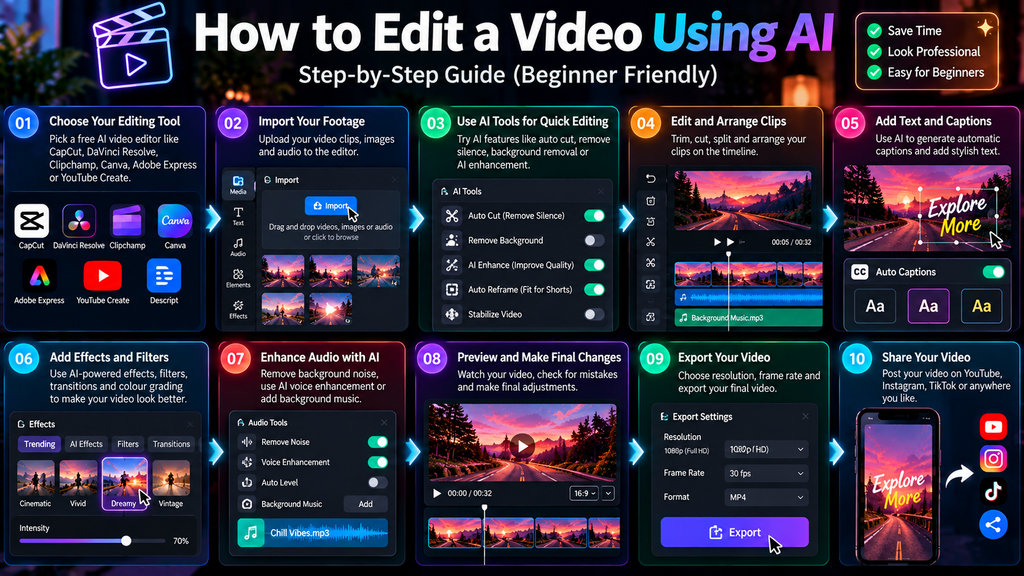
Follow these seven simple steps to create a video without paying for editing software.
Step 1: Start with Your Footage
Record a video or collect clips you have permission to use. Decide what your video should communicate before editing.
Step 2: Import Your Clips
Open your editor and add your footage to the timeline. Remove unnecessary, repetitive, or distracting sections.
Step 3: Let AI Save You Time
Use available tools for automatic captions, silence removal, transcript-based editing, or audio enhancement. Treat the AI result as a first draft.
Step 4: Improve the Pacing
Keep the strongest moments and remove unnecessary pauses. For Shorts and Reels, make the opening seconds clear and engaging.
Step 5: Add Captions, Music, and Graphics
Use readable subtitles and suitable music. Make sure music doesn’t overpower speech and text stays visible on mobile screens.
Step 6: Export and Review
Watch the entire exported video. Check spelling, audio levels, image quality, aspect ratio, watermarks, and licensing restrictions.
Step 7: Prepare Videos for Different Platforms
Create a vertical version for Shorts or Reels and a horizontal version for standard YouTube videos when needed. Reposition text and subjects instead of relying on automatic cropping.
Can You Make Money Using Free AI Video Editing Tools?
Yes, you can start without expensive subscriptions. Free editors can help you build skills, create a portfolio, and offer video services.
However, AI does not guarantee views, clients, or income. Your editing quality, reliability, originality, and ability to solve clients’ problems still matter.
Here are five practical ways to earn money using your skills.
1. Offer Short-Form Video Editing Services
Turn existing footage into Reels, Shorts, and TikTok-style videos. Offer captions, clean cuts, basic sound design, and platform-specific formatting.
Potential clients: Small businesses, creators, coaches, and podcasters.
2. Sell Thumbnail and Video Packages
Combine video editing, thumbnail design, title ideas, and content repurposing. Bundled services can offer creators more value than a single edit.
3. Create and Monetise Your Own Content
Use free editors to publish original videos on YouTube and other platforms. Earnings depend on audience growth, eligibility, advertiser demand, and platform monetisation policies.
4. Use Affiliate Marketing
Publish software tutorials or reviews and link to relevant products through legitimate affiliate programmes. Disclose affiliate relationships clearly and recommend tools for their usefulness, not just their commission.
5. Sell Tutorials and Digital Resources
Create beginner guides, editing presets, caption templates, workflow checklists, or project files you have permission to distribute. Use them to grow an audience or build a digital-product business.
Frequently Asked Questions
Which is the best free AI video editing tool?
It depends on your needs. CapCut is worth considering for short-form content, DaVinci Resolve for advanced desktop editing, Clipchamp for simple projects, and Descript for speech-heavy videos.
Are free AI video editors really free?
Some offer useful free features, while others limit AI credits, exports, premium assets, or advanced tools. Check the current terms before committing.
Can I edit YouTube videos for free using AI?
Yes. You can use DaVinci Resolve, Clipchamp, or YouTube Create, depending on your device and needs. Available AI features can help with captions, audio cleanup, and organising footage.
Which free AI video editor is best for beginners?
Clipchamp and Canva are approachable options for simple projects. CapCut is also worth testing if you mainly create short-form social content.
Can AI edit an entire video automatically?
Some tools can create a first cut, arrange footage, or generate an initial video from a prompt. However, human review is still important for pacing, accuracy, storytelling, and licensing.
Can I use free AI video editing tools for commercial projects?
Possibly. It depends on the software plan and the licences attached to its assets and features. Check the commercial-use terms before delivering paid client work.
Do I need a powerful PC for AI video editing?
Not always. Browser-based tools can handle many simple projects, but complex timelines, high-resolution footage, effects, and local AI processing may require more powerful hardware.
Final Verdict
Free AI video editing tools let you start creating without a big budget. They can help you generate captions, organise footage, clean up audio, and prepare videos for social platforms.
- CapCut: Quick social edits.
- DaVinci Resolve: Advanced desktop editing.
- Clipchamp or Canva: Simple, beginner-friendly projects.
- Descript: Videos built around spoken content.
The smartest approach is to choose one tool, check its free-plan limits, and learn to use it well. A clear story, thoughtful editing, good sound, and original ideas matter more than the number of AI features an app advertises.