How to Increase FPS in Minecraft (2026): Best Settings
How to Increase FPS in Minecraft (2026): Best Settings for Low-End PCs
Minecraft looks simple, but if you’ve ever experienced sudden FPS drops while exploring, fighting mobs, or loading new chunks, you already know how frustrating lag can be.
The good news is that you don’t always need an expensive gaming PC to enjoy smoother Minecraft gameplay. A few changes to your video settings, better performance mods, and some basic PC optimization can make a noticeable difference.
In this guide, I’ll walk you through practical ways to increase FPS in Minecraft Java Edition and Bedrock Edition, including settings for low-end PCs and laptops.
Whether you’re playing survival with friends, building a huge world, or running around on a Minecraft server, these tips can help you find the right balance between performance and visual quality.
Quick answer

To increase Minecraft FPS, lower your render distance, reduce demanding visual effects, close unnecessary background apps, and consider a compatible performance mod such as Sodium for Java Edition. Test changes one at a time to find what works best for your PC.
1. Why does Minecraft FPS drop?
Before changing settings, it’s helpful to understand what’s causing the problem.
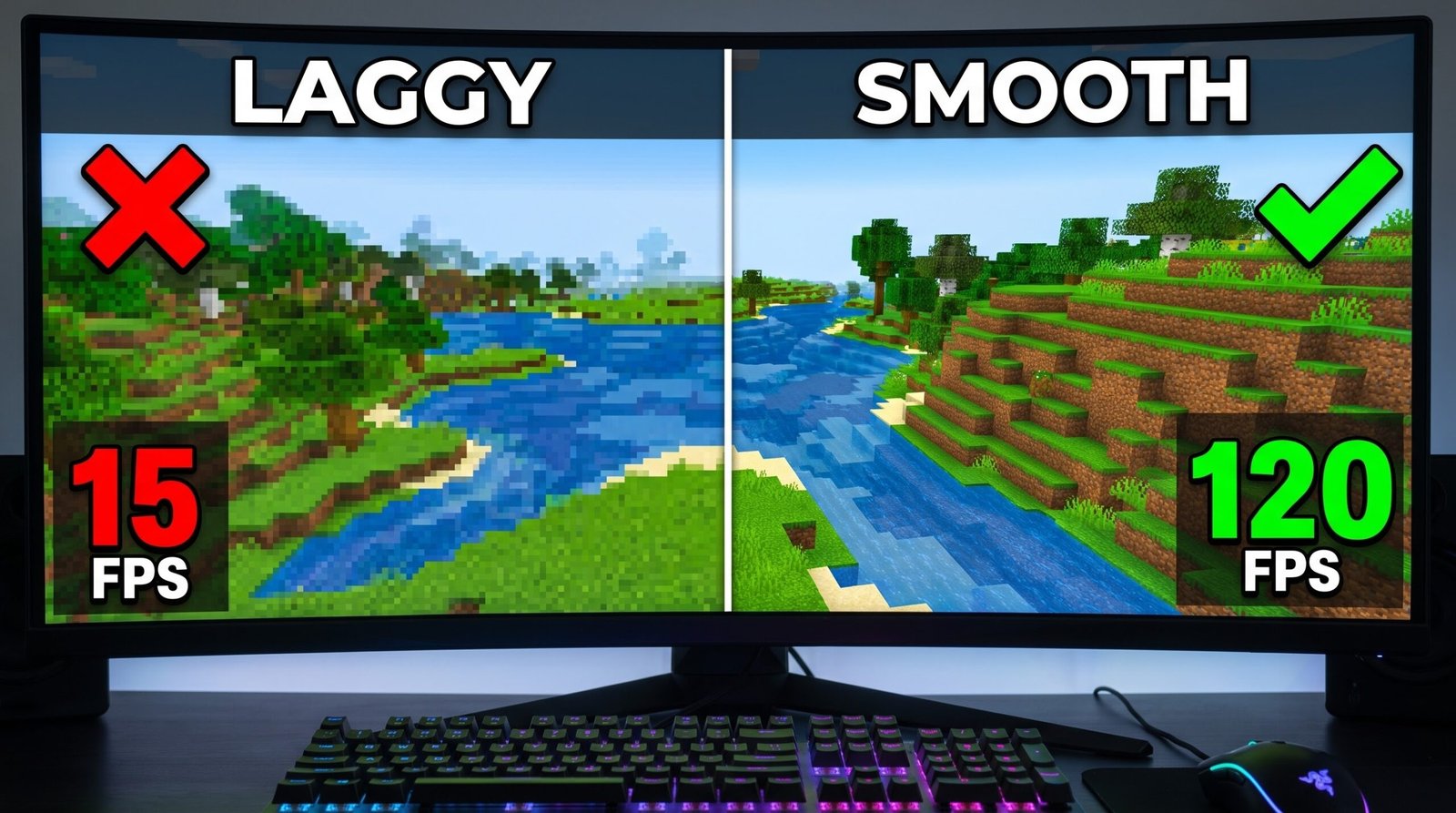
FPS stands for frames per second. It measures how many frames your computer displays each second. Higher FPS can make movement feel smoother, although stability and your monitor’s refresh rate also matter.
Minecraft performance can be affected by several things:
- CPU limitations: World simulation, entities, and other game tasks can put pressure on your processor.
- GPU limitations: Rendering complex scenes, shaders, and visual effects can strain your graphics card.
- High render distance: The game has to render more of the world.
- Memory pressure: Too many applications or insufficient available RAM can contribute to stuttering.
- Background applications: Browsers, recording software, and other programs can compete for system resources.
- Thermal throttling: A laptop that gets too hot may reduce performance to manage temperatures.
Minecraft Java Edition’s official system requirements were updated in July 2026. Mojang lists 1080p at 30 FPS with the Fast preset as its minimum target and 1080p at 60 FPS with the Fancy preset as its recommended target. These are reference targets, not guarantees for every world, mod, or shader.
2. Best Minecraft video settings for FPS
If you want to start improving performance immediately, adjust your in-game settings first.
The exact options and their names can vary by edition, game version, and whether you’re using mods.
Recommended starting settings for Minecraft Java Edition
| Video setting | Starting point |
| Graphics | Fast |
| Render Distance | 8–10 chunks |
| Simulation Distance | 4–6 chunks |
| Clouds | Off |
| Particles | Decreased or Minimal |
| Entity Distance | Reduce if available |
| Biome Blend | Low or Off |
| Shaders | Off |
| V-Sync | Test On and Off |
| Max Framerate | Match your display or use a stable cap |
These are suggested starting values, not universal optimal settings. The Minecraft Wiki’s frame-rate guide also recommends lowering render distance, reducing particles, and using simpler graphics options to improve performance.
Render Distance: The first setting to adjust
Render Distance controls how far away the game draws the world around you.
A higher setting lets you see more terrain, but it also increases rendering work. Microsoft explains that greater render distance can reduce frame rate, particularly when the device has limited resources.
Try these starting points:
- Low-end PC: 6–8 chunks
- Mid-range PC: 8–12 chunks
- More powerful PC: 12–16 chunks, then test higher
If you still experience FPS drops, reduce the setting further.
Simulation Distance: Reduce unnecessary work
Simulation Distance determines how far away game activity is processed, such as mob behavior and certain world updates.
It’s different from Render Distance: you can see distant terrain without having all of its gameplay activity simulated.
For Bedrock Edition, Microsoft notes that simulation distance can have a greater performance cost because it affects both client and server processing.
Try 4–6 chunks on a low-end system, then increase it if gameplay feels too limited.
Graphics and visual effects
Set Graphics to Fast if your version provides that option. Also consider turning off clouds, reducing particles, and disabling shaders while troubleshooting.
If you prefer better visuals, re-enable individual options after testing. You don’t have to play with every setting at its lowest value.
V-Sync and FPS limit
V-Sync can help reduce screen tearing, but it may affect responsiveness or frame pacing depending on your setup.
An unlimited FPS setting is not automatically the best choice. If your frame rate fluctuates heavily, try a stable cap that your PC can maintain. Compare how the game feels with V-Sync enabled and disabled.
3. Use performance mods in Minecraft Java Edition
If you’re playing Java Edition on PC, performance mods can be another way to improve rendering efficiency.
Sodium

Sodium is a rendering optimization mod for Minecraft Java Edition. It can improve rendering performance, but the actual results depend on your hardware, game version, and other mods.
Use a release compatible with your Minecraft version and mod loader.
Sodium is a commonly used option for Java Edition performance optimization. The Minecraft Wiki’s frame-rate guide describes it as a rendering optimization mod and discusses its use alongside other performance mods.
How to get started with Sodium
- Check which Minecraft Java Edition version you’re playing.
- Choose a compatible mod loader and Sodium release.
- Download the mod from its official project page or a trusted distribution source.
- Follow the installation instructions for your launcher and mod loader.
- Launch the game and test performance in the same world and settings as before.
- Official project
- Check the current version and installation instructions before downloading.
- Visit Sodium on Modrinth
What about OptiFine?
OptiFine

OptiFine is another well-known Minecraft optimization option, particularly for players who use its visual features. Compatibility and performance vary by Minecraft version and mod setup.
Avoid installing multiple mods that change the same rendering systems without checking compatibility. If you already use a modpack, check its documentation before adding more mods.
4. Optimize your PC or laptop
Sometimes Minecraft isn’t the only thing using your computer’s resources. A few simple changes can help you identify whether other applications are contributing to poor performance.
Close unnecessary background applications

Before launching Minecraft:
- Close browser tabs you don’t need.
- Exit unnecessary applications running in the background.
- Pause downloads or other resource-intensive tasks.
- Open Task Manager (Ctrl + Shift + Esc) to check which applications are using significant CPU, memory, or GPU resources.
Don’t randomly end Windows system processes. Close only applications you recognize and don’t need.
Enable Windows Game Mode
Windows Game Mode is worth testing while playing Minecraft.
- Open Windows Settings.
- Go to Gaming.
- Select Game Mode.
- Turn it on.
This is a system-level gaming setting, not a guaranteed FPS booster. Test it on your own computer.
Make sure Minecraft uses the right GPU
This is especially important for gaming laptops with both integrated and dedicated graphics.
- Open Windows Settings.
- Go to System → Display → Graphics.
- Find or add Minecraft’s executable.
- Open its graphics options.
- Select the high-performance GPU if appropriate.
The exact application entry depends on your launcher and Minecraft edition. Choosing a dedicated GPU can help when Minecraft is otherwise running on integrated graphics, but it won’t automatically solve CPU bottlenecks.
Keep your laptop cool

If your laptop becomes very hot during gameplay, its processor or graphics card may reduce performance to control temperatures.
Try these basic habits:
- Use your laptop on a hard, flat surface.
- Keep the air vents unobstructed.
- Clean dust from the cooling system when needed.
- Use the manufacturer’s recommended performance mode while gaming.
- Avoid blocking the fans with blankets or cushions.
A cooling pad may help some laptops, but it isn’t a guaranteed solution. Check temperatures and performance before spending money on one.
5. Improve FPS in Minecraft Bedrock Edition

Bedrock Edition has different settings and optimization options from Java Edition, so don’t assume every Java mod or tutorial will work.
Recommended starting settings
| Setting | Suggested starting point |
| Render Distance | 6–10 chunks |
| Simulation Distance | 4 chunks |
| Fancy Graphics | Off, if available |
| Beautiful Skies | Off, if available |
| Fancy Leaves | Off, if available |
| Render Dragon Vibrant Visuals | Disable while troubleshooting, if enabled |
The availability of settings depends on your device and game version.
Microsoft’s documentation explains that reducing render distance, simulation distance, and demanding visual effects can help balance performance and visual quality.
Disable demanding visual features

If you’re using Vibrant Visuals or other demanding graphics options, try disabling them and testing the same scene again.
You may notice a visual difference, but it can help establish whether graphics rendering is responsible for your FPS drops.
Reduce simulation distance
Lower simulation distance if your world has many mobs, active farms, or other gameplay systems.
Keep in mind that this affects gameplay activity, not just appearance. Crops, mobs, and other mechanics may behave differently when they’re outside the active simulation area.
6. FPS lag vs. server lag: Know the difference

This is something many Minecraft players misunderstand.
Low FPS and server lag are not the same problem.
| Problem | What you may notice | What to investigate |
| Low FPS | Choppy movement, stuttering visuals | Graphics settings, GPU, CPU |
| Server lag | Delayed interactions, mobs behaving slowly | Server performance, network |
| High ping | Delayed response to actions | Internet connection, server location |
| Chunk-loading stutter | Freezes or pauses while exploring | Storage, CPU, memory, world generation |
A server can run smoothly while your computer struggles to render the game. Likewise, you can have high FPS while experiencing a laggy multiplayer server.
How to tell which problem you have
- If your FPS is low even in a single-player world, investigate your PC and game settings.
- If your FPS is high but multiplayer actions are delayed, investigate your connection and server.
- If the game stutters mainly when exploring new terrain, test whether chunk loading is involved.
Lowering graphics settings won’t necessarily fix high ping or server-side performance problems.
7. Troubleshooting common Minecraft FPS problems
Use this checklist to narrow down the cause instead of changing every setting at once.
Troubleshooting checklist
Minecraft runs smoothly at first but becomes laggy later.
Check temperatures, memory usage, and background applications.
FPS drops when exploring new chunks.
Reduce render distance and test whether world generation or storage activity is causing stutters.
FPS drops around many mobs.
Reduce simulation distance and entity-related visual settings where available.
Minecraft uses the integrated GPU.
Check Windows graphics preferences and the GPU selected for your launcher.
FPS is high but gameplay feels delayed online.
Check ping, packet loss, and server performance rather than graphics settings.
A new mod causes crashes or stuttering.
Remove the recently added mod and check version and mod-loader compatibility.
Don’t allocate all your RAM to Minecraft
More allocated RAM doesn’t automatically mean higher FPS.
Minecraft Java Edition 26.1 increased its default memory allocation from 2 GB to 4 GB and changed its garbage collector to ZGC on compatible devices. Mojang also notes that third-party launchers may not support these defaults.
For that reason, don’t blindly copy old Java arguments or memory settings from random tutorials. Start with your launcher’s defaults, check actual memory usage, and make changes only when you have a specific problem to solve.
8. Frequently asked questions
1. How can I increase Minecraft FPS quickly?
Lower Render Distance, reduce demanding graphics settings, close unnecessary applications, and disable shaders while testing. For Java Edition, consider a compatible performance mod such as Sodium.
2. What is the best render distance for a low-end PC?
Start with 6–8 chunks and adjust based on your performance. Lower values generally reduce rendering work, but the ideal setting depends on your hardware and gameplay preferences.
3. Does Sodium increase Minecraft FPS?
Sodium is designed to optimize Minecraft Java Edition’s rendering. It can improve performance, but the amount varies depending on your PC, Minecraft version, and mod setup.
4. Does allocating more RAM increase FPS?
Not necessarily. Additional memory can help if Minecraft is running short of memory, but allocating excessive RAM doesn’t guarantee better performance and can introduce other issues.
5. Why is Minecraft lagging even with high FPS?
High ping, server lag, frame-time spikes, or inconsistent frame pacing can make gameplay feel delayed or choppy even when the displayed FPS is high.
6. Can I increase Minecraft FPS without mods?
Yes. You can adjust in-game settings, close unnecessary applications, check your GPU selection, and manage laptop cooling without installing mods.
7. Do these settings work for Minecraft Bedrock Edition?
Many general ideas apply, such as reducing render distance and demanding visual effects. However, Java-specific mods like Sodium do not apply to Bedrock Edition.
8. Is unlimited FPS better than a frame-rate cap?
Not always. Unlimited FPS may increase hardware usage, heat, and power consumption. A stable cap can provide a smoother experience on some systems.
Conclusion: Make Minecraft run smoother
You don’t need to change everything to improve Minecraft performance. Start with the settings that have the most noticeable effect, test your results, and make adjustments based on your actual hardware.
For Java Edition, lowering render distance and testing Sodium are useful starting points. For Bedrock Edition, focus on render distance, simulation distance, and graphics features available on your device.
Most importantly, remember that FPS drops, server lag, and high ping have different causes. Identifying the actual problem will save you time and help you avoid unnecessary downloads or upgrades.
Try these settings, test your gameplay, and find the balance between smooth performance and the Minecraft visuals you enjoy.